Playwright Automation Testing: What It Is, How It Works, and How to Set It Up
Over 5,900 companies already use Playwright, including Microsoft, Adobe and Shopify. That number is climbing fast. Chances are, you might be one of them or you’re about to start using it. But knowing how to install Playwright isn’t the same as knowing how to use it well.
This updated 2026 guide shows you how high‑performing teams structure Playwright projects to be fast, stable and maintainable. You’ll learn:
- What Playwright is and who made it
- Why teams prefer it for web automation
- How to install Playwright and write your first tests
- How it compares to Selenium
- Advanced features and best practices
- How AI is changing Playwright testing with the Model Context Protocol (MCP)
Let’s get started.
What Is Playwright?
Playwright is a modern web automation library maintained by Microsoft. Released in 2020 by former members of the Puppeteer team, it connects directly to browser automation endpoints (such as the Chrome DevTools Protocol) rather than relying on the WebDriver protocol.
This means fewer moving parts, faster feedback loops and more reliable test behaviour. Playwright supports JavaScript/TypeScript, Python, Java and .NET, and includes its own versions of Chromium, Firefox and WebKit, so you don’t have to manage separate drivers.
Playwright simulates real user actions like clicking buttons, filling forms and navigating pages across Chrome, Firefox and Safari. It auto‑waits for elements to be ready and supports parallel execution, screenshot/video capture, API testing and network interception.
Here’s how the tool has evolved throughout the years:
- 2020: Playwright was launched by Microsoft, team behind Puppeteer, ensuring deep browser expertise, cross-browser end-to-end testing with a single API, featuring auto-waiting and full test isolation from its inception.
- 2021: Capabilities expanded to include API testing and comprehensive network interception.
- 2022: Enhanced debugging tools and improved integration with CI/CD pipelines (like GitHub Actions and Jenkins) became key focuses.
- 2023: Support for mobile testing and improved performance testing features were introduced. State of JS 2023 report mentioned that by this time, Playwright became the #1 most loved and desired testing framework by developers.
- Recent in 2024): The Model Context Protocol (MCP), a very recent development, enables AI agents like GitHub Copilot to generate and execute tests through Playwright.
- 2026: Continued investment in AI‑assisted testing, better reporting and observability tools, and expanded community plugins.
Why QA Teams Prefer Playwright?
A lot of people think that it is just a test automation tool. Playwright isn’t just an automation toolit’s a comprehensive testing ecosystem. Here’s why teams choose it over legacy frameworks.
- Direct browser connection: Playwright uses WebSockets to communicate with browsers, reducing the latency and flakiness associated with WebDriver.
- Cross‑browser & multi‑language: Write one test that runs on Chrome, Firefox and Safari; APIs are nearly identical across JavaScript/TypeScript, Python, Java and .NET.
- Browser contexts: Isolated sessions let you simulate multiple users in one browser instance.
- Auto‑waiting & web‑first assertions: Playwright waits for elements to be ready, reducing manual waits and flakiness.
- Parallel execution: Run tests concurrently for faster feedback.
- API & network testing: Built‑in API request mocking and network interception.
- Mobile emulation: Emulate devices like iPhone or Pixel with simple configuration.
- Smart debugging: Trace Viewer records DOM snapshots, network logs and videos for each run.
- Growing community: The best thing about this tool is that it is completely open-source, developed and maintained by Microsoft. Currently, it has 75.2K stars on GitHub, and it is used by 414K people. There is a growing community of 642 contributors who are always helping fellow developers to implement this tool in their workflow.
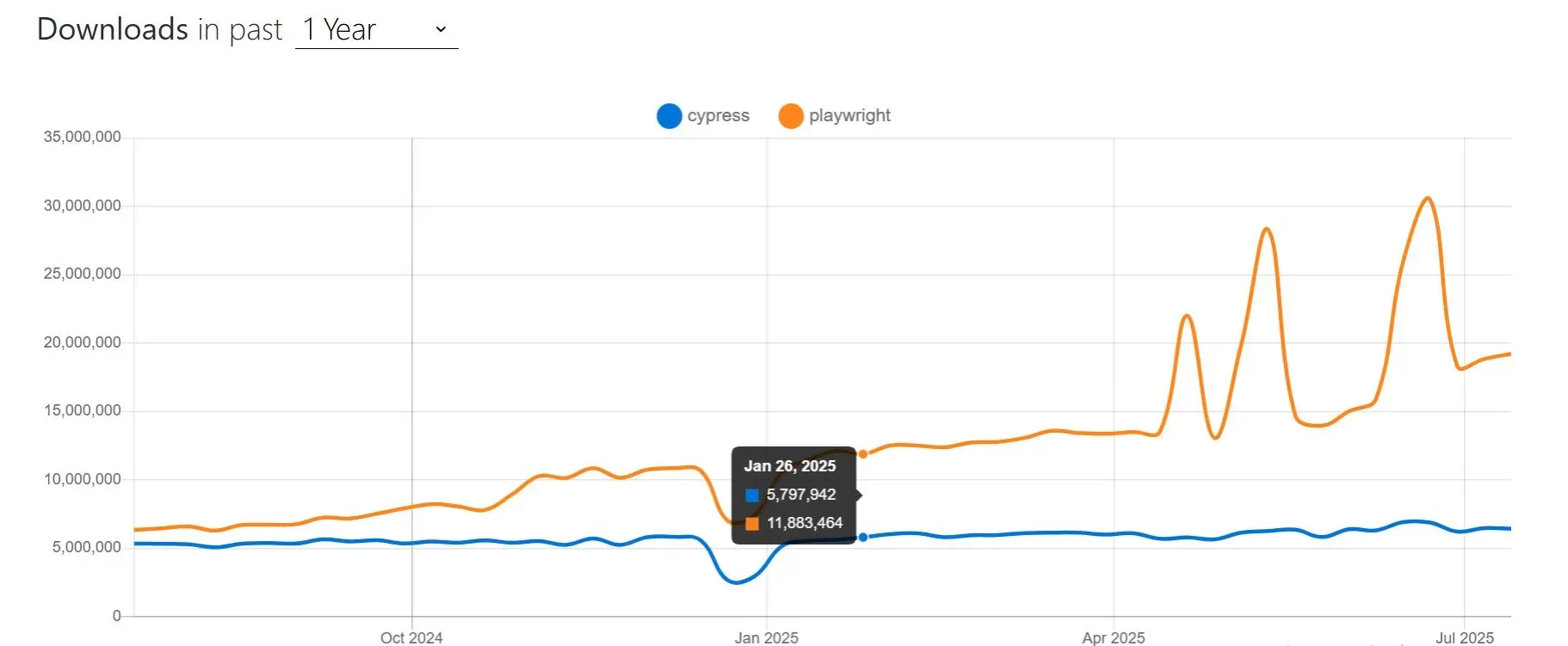
Source: npmtrends
Installing Playwright: Step‑by‑Step
Follow these steps to install Playwright and run your first test:
Initialize a project:
npm init playwright@latestThis command scaffolds a Playwright project, downloads browser binaries and creates example tests.
Open the example test:
Navigate to the
testsfolder and openexample.spec.ts(or.js/.pydepending on your language). The test uses Playwright’s test runner with auto‑waiting and built‑in assertions.Run the tests:
npx playwright testPlaywright will launch the browsers headlessly, run your tests and generate an HTML report with traces and screenshots.
Configure browsers or devices:
Adjust the
playwright.configfile to run on specific browsers, emulate mobile devices or enable parallel execution.
Key Playwright Features That Make It a Web Testing Powerhouse
Developed by Microsoft, Playwright brings unmatched flexibility, power, and resilience to the world of test automation. These key features set it apart from legacy tools and even its modern ones.
- Cross-browser Support: One of its biggest advantages is true cross-browser support. With Playwright, you can write a single test that works across Chrome, Firefox, and Webkit(Safari). There’s no need to maintain separate versions of each test for different browsers. This means you get broader coverage, fewer redundancies, and a consistent user experience across platforms. Learn more about cross‑browser testing with Playwright here.
- Multiple Programming Language Support: Playwright also supports multiple programming languages, including JavaScript, TypeScript, Python, Java, and C#. This flexibility makes it easier to integrate into your existing workflows, without forcing your team to learn a new language just to start testing.
- Built-in Auto-waiting Mechanism and & Web-First Assertions: Many older tools require hard-coded delays to support slow-loading elements or transitions. Playwright automatically waits for elements to be actionable before performing. Playwright Includes web-first assertions that retry automatically until your desired conditions are met. This significantly reduces flakiness in modern, dynamic UIs. As a result, you get faster results and more reliable tests.
- Parallel Test Execution: Speed, overall, is a major strength. Playwright supports parallel test execution, so you can run multiple tests at once. A test suite that used to take 30 minutes might now finish in under 10. Faster tests mean quicker feedback and tighter development loops. This significantly reduces test suite runtime and allows scalable execution on CI servers. It use browser contexts for isolated, sandboxed sessions which means you can simulate multiple users or sessions simultaneously—all without spinning up new browser instances.
Mobile Web Testing: Playwright provides native mobile browser emulation for:
- Google Chrome on Android.
- Safari on iOS.
Note: Use it to test responsive layouts, geolocation, and touch interactions in real-world mobile scenarios.
- Smart Debugging: When things go wrong, Playwright makes debugging far easier. It automatically records each test run, including screenshots, network logs, video, Interactive trace files with DOM snapshots, action explorer, and source view. All of this is viewable via the Trace Viewer, allowing you to debug failures step-by-step with full visibility.
- Multi-User, Multi-Tab, Multi-Origin Scenarios: Simulate real-world complex flows:
- Interact with multiple tabs or browser windows.
- Switch between different domains (multi-origin).
- Create multiple user sessions using isolated browser contexts in the same test.
- Trusted Events & Shadow DOM Support: Playwright uses the browser’s real input pipeline, producing trusted events (e.g., hover, drag-drop, clipboard).
It also supports:- Deep Shadow DOM piercing.
- Frame and iFrame handling.
- Interactions inside complex web components.
- First-class TypeScript Support: Playwright supports TypeScript out of the box, giving you strong typing, autocompletion, and enhanced IDE experience for large-scale projects.
- Codegen: Use the command below to generate Playwright test code by recording your browser actions interactively:
Codegen opens a browser window and records every interaction, generating script snippets in your preferred language.
- Authentication Reuse: Log in once, save the session, and reuse the authentication state across multiple tests.
This speeds up test execution while maintaining test isolation. - Playwright Inspector: Use the built-in Playwright Inspector to:
- Step through tests.
- Interact with the browser.
- Debug flaky issues visually.
- Generate selectors easily.
- Out-of-Process Architecture: Playwright runs tests out-of-process, aligned with how modern browsers isolate web content. This avoids flakiness from in-process test runners and improves overall stability and security.
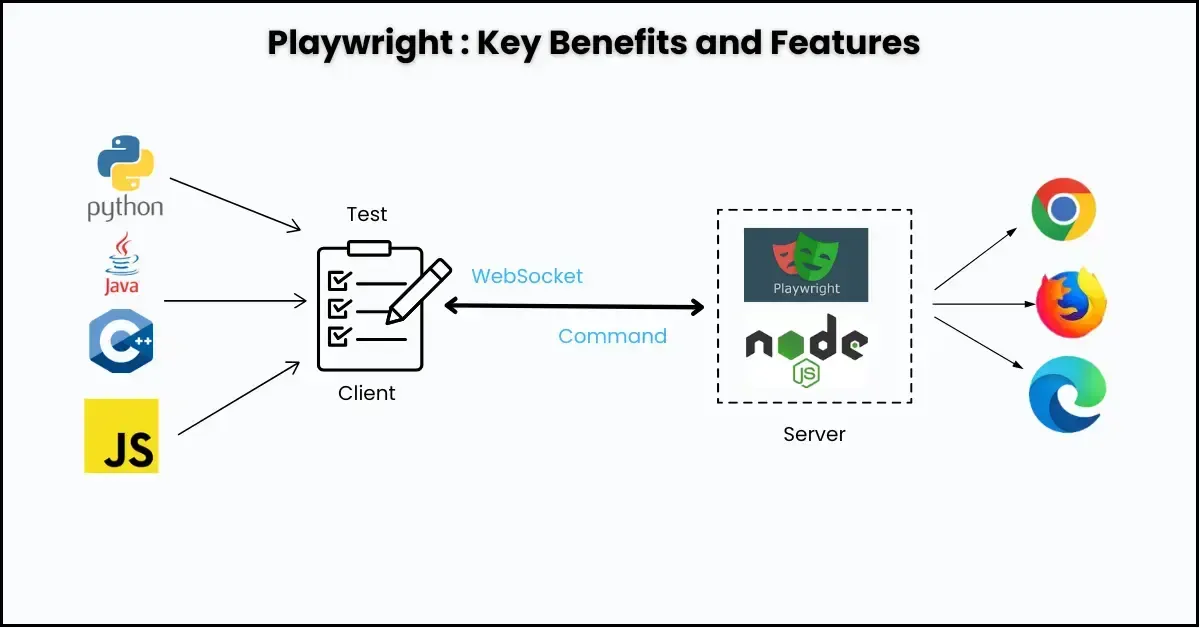
All these features make Playwright one of the strongest choices for today’s QA workflows.
Here is detailed explaination of playwright features benefit and limitations.
Playwright vs Selenium: Quick Comparison
Feature | Selenium | |
Language Support | ||
Browser Support | All major (Chrome, Firefox, Edge, Safari), legacy (IE, now deprecated) | Chrome, Firefox, WebKit/Safari |
Parallel Execution | Yes (Grid/CI) | Yes (native, easy) |
Record/Playback | Selenium IDE | Codegen |
Flakiness Handling | Explicit/implicit waits; network interception and self-healing via BiDi, CDP, or third-party tools. | Auto-wait, trace, retry |
CI/CD Integration | Manual setup | Native/simple |
Visual Regression | Plugins, AI-powered third-party tools emerging; no native | Native (built-in tracing, screenshots, video) |
Mobile Emulation | Appium (real devices, native/hybrid/web), and limited browser emulation via drivers | Emulates mobile browsers (no real devices/apps) |
Component Testing | No | Yes (JS/TS; growing ecosystem) |
Network Stubbing | Yes (BiDi/CDP, 4+) | Yes |
Community Size | Largest, 31k+ companies, 22% market share (2025) | Fast-growing |
Open Source | Yes | Yes |
Why Playwright Tests Start to Fail
Despite having all the great features, this tool hit some serious bottlenecks. And that mostly happens with inexperienced teams. So if you’re just starting and have heard a few good things about Playwright, just make sure you’re not facing the following issues.
- Doesn’t Give Lasting Confidence: Playwright is easy to set up. You can install it in minutes, write a few basic tests, and get green checkmarks almost immediately. That early momentum is encouraging but often misleading. As the test suite grows, those early wins disappear. Tests that once passed begin to fail for no clear reason. Pipelines slow down, and teams lose confidence in automation. All this happens because you’re not familiar with all these issues and how to overcome them.
- Flaky Selectors and Misused Waits: One of the first technical cracks comes from weak selectors. Test code that relies on styles like .btn-primary or fragile DOM positions like div:nth-child(3) breaks the moment the UI changes. Then there’s the quick fix: adding arbitrary waits like wait(2000) to "stabilize" the test. This only makes things worse. The test becomes slower without becoming more reliable. As a result, these flaky selectors and manual wait hacks combine into a fragile, time-consuming problem.
- Code Rot and Test Bloat: As tests pile up, disorganization becomes evident. With no clear structure, inconsistent naming, repeated logic, and unclear dependencies, teams can’t figure out what the test is actually doing and why it is failing. And you accept a bit of flakiness as inevitable and start to ignore failures.
All this leads to distrust in the tool. However, the problem is something else. Most teams use it for a quick fix rather than a primary tool. In the next section, we’ll tell you how smart teams you use it for better efficiency so you can avoid all those mistakes.
What High-Performing Teams Do Differently with Playwright
Here’s what separates teams that struggle from teams that grow.
1. Start With a System, Not Just Scripts
Strong automation begins with structure. That means planning before writing tests, which includes defining folder layouts, naming conventions, and reusable components. We organize tests using the Page Object Model, giving each screen its own logical unit. It keeps test files lean and readable, and it makes changes easier to manage as the product evolves.
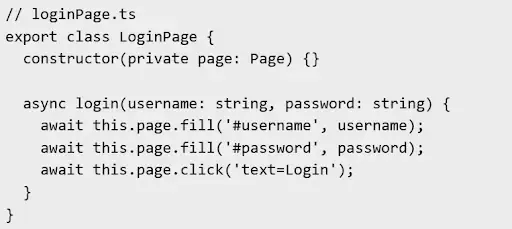
We’ve seen this one decision save hundreds of hours across complex applications.
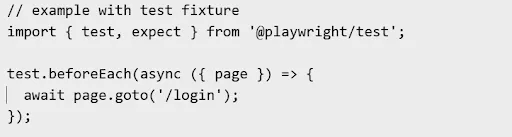
2. Use Fixtures to Set Up and Tear Down Cleanly
Tests should be independent, and fixtures make that possible. We define setup and teardown logic using Playwright’s test fixtures. That means no more polluting global state or duplicating setup code. If we want to log in before every test or reset data after each run, fixtures handle that automatically. This keeps tests isolated and predictable, which is especially important when running them in parallel or across different environments.
3. Choose Resilient, Accessible Selectors
Weak selectors are the fastest way to break a test suite. We avoid CSS classes like .button-blue or DOM positions like div:nth-child(2) as they’re too easy to break during UI changes. Instead, we rely on accessibility-first queries like getByRole(), getByLabelText(), or getByTestId().

These are stable, expressive, and easier to debug when things go wrong. They also align with WCAG accessibility standards, which is an added bonus.
4. Run in Parallel, Isolate with Contexts
Speed and accuracy both matter. Playwright makes it easy to run tests in parallel, and we take full advantage of that. To avoid state leakage between tests, we use isolated browser contexts so each test starts fresh. That means no shared sessions, no leftover data, and fewer weird edge-case failures.
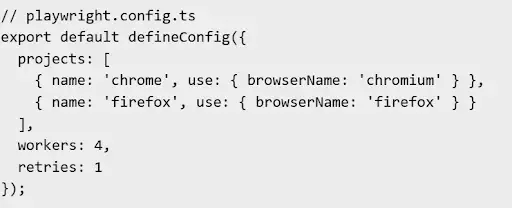
Parallelism plus isolation gives us fast pipelines without sacrificing reliability.
5. Automate Debugging and Continuous Integration
Debugging shouldn’t require guesswork. We use tools like Trace Viewer and video recording to step through failures and catch issues fast. For CI, we plug Playwright into GitHub Actions or Jenkins, using Docker to ensure environments are consistent across machines.
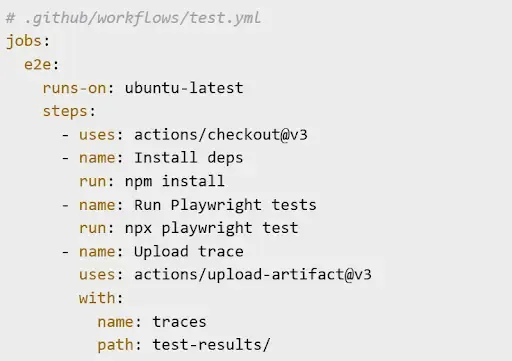
Tests run on every commit, and failures are easy to trace and fix. This keeps quality high without slowing down the dev cycle.
At ThinkSys, we’ve built and maintained large-scale Playwright test suites for clients across fintech, edtech, healthcare, and ecommerce. We’ve seen firsthand what breaks and what scales. We are about to share the practices that we use on real client projects to build fast, stable, and maintainable Playwright automation.
- Read our Centerbase regression testing success story.
- Read how we helped Fresh Tracks Canada improve test stability and speed with Playwright.
Organisations can either build their own QA team or outsource to experienced Playwright experts.
AI and Playwright: The Next Frontier (MCP)
Playwright on its own is already a powerful automation tool. But what’s really exciting is how Playwright is now working with AI, especially through something new called the Model Context Protocol (MCP).
What Is MCP, and Why Does It Matter?
The Model Context Protocol, or MCP, is a new feature introduced by Microsoft to make Playwright more AI-friendly. It allows large language models (LLMs) like GitHub Copilot or GPT-based tools to connect directly to a browser session running in Playwright.
Instead of relying on fragile CSS selectors (like .btn-primary or div:nth-child(2)), MCP gives AI access to the accessible tree of the page. This means the AI can “see” the page more like a human would. It knows which elements are buttons, inputs, toggles, etc., even if their position or class names change.
MCP also allows the AI to do more than just click around. It can send API requests, interact with databases, and simulate workflows. And since it works through the same Playwright framework, you don’t need separate tools for UI vs. API testing.
How AI Tools Use MCP to Write and Run Tests
Tools like GitHub Copilot and GPT-Engineer can now generate Playwright test code from plain English prompts. For example, you could say:
“Write a test that logs in, searches for a product, and verifies it appears on the results page.”
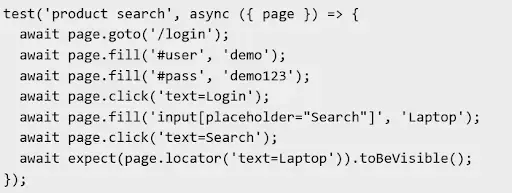
Copilot or GPT-Engineer will write the test code. Then, thanks to MCP, that code can run directly in Playwright, using real browser sessions and real interactions. For this, no setup hacks or manual tweaks are needed.
Even more interesting is that if the test fails, some of these tools can fix and re-run the test automatically. AI builds and adjusts code purely based on goals, without a human writing every line manually.
What AI Can and Can’t Do (Yet)
AI can generate tests fast, especially for common scenarios. It’s helpful for teams that are short on time or staff. But it still needs human supervision.
Must Read: The Role of AI In Software Testing
AI doesn’t know your product the way you do. So it might miss edge cases or misunderstand complex business rules. That’s why human-in-the-loop review is still critical. You should always:
- Review the AI’s generated test code
- Tweak the logic if needed
- Write detailed prompts to guide the AI
- Make sure the tests match real-world expectations
Is Playwright Better Than Selenium?
The answer depends on your context. Playwright is generally faster and more modern because it connects directly to the browser and auto‑waits for page readiness. It also bundles its own browsers and supports isolated browser contexts. These features reduce flakiness and simplify setup.
Selenium, however, has a larger community and supports more programming languages. For legacy enterprise applications with established Selenium pipelines, switching may not be cost‑effective. But for new projects or teams struggling with flaky tests and slow execution, Playwright offers a faster path to stable, cross‑browser automation.
Conclusion
Playwright gives you speed, flexibility, and power, but it needs direction. Without structure and discipline, even the best tools fall short. By following proven practices like POM, fixtures, CI integration, parallelism, and resilient selectors, your QA team can move from flaky automation to fast, dependable coverage. With AI integration on the horizon via MCP, you’re not just automating tests- you’re future-proofing your QA.
If you’re ready to build stable, reliable Playwright automation but need help, explore our Playwright automation testing services. We’ve supported teams across fintech, edtech, healthcare and e‑commerce to scale Playwright successfully.
Now that we’ve explored why Playwright is gaining momentum, let’s see how it stacks up against other major players like Selenium and Cypress.
If you’re currently using Selenium, here’s how to migrate to Playwright.

Frequently Asked Questions
Share This Article: